Setup guide · Updated November 2026
How to set up Gmail signatures for your whole company
Everything from the first click to a signature in everyone’s Gmail, with the screen you’ll see at each step. It takes about ten minutes, and only one step needs your Google admin.
Before you start
Check these four things and the rest goes quickly.
- Your company uses Google Workspace, with addresses like you@yourcompany.com. Personal @gmail.com accounts can’t be managed this way.
- You can reach a super admin of that Google Workspace. It can be you, or your IT person.
- You know which design everyone should get. You can make it in esigna first, free.
- About ten minutes. Google can take a few more to apply its part.
Set it up in six steps
- 1
Step 1: Start your free trial
On the Prices section of the Gmail for your company page, pick your team’s size and press Start free trial. Sign in or make an account, and your 14 days start. No card is asked for.

Your trial shows at the top of Email apps, with the days left. - 2
Step 2: Choose the design that goes into Gmail
Open Email apps in your Signatures, choose Connect Google Workspace and pick a design. Everyone gets it with their own details from your directory. You can change it later at any time.
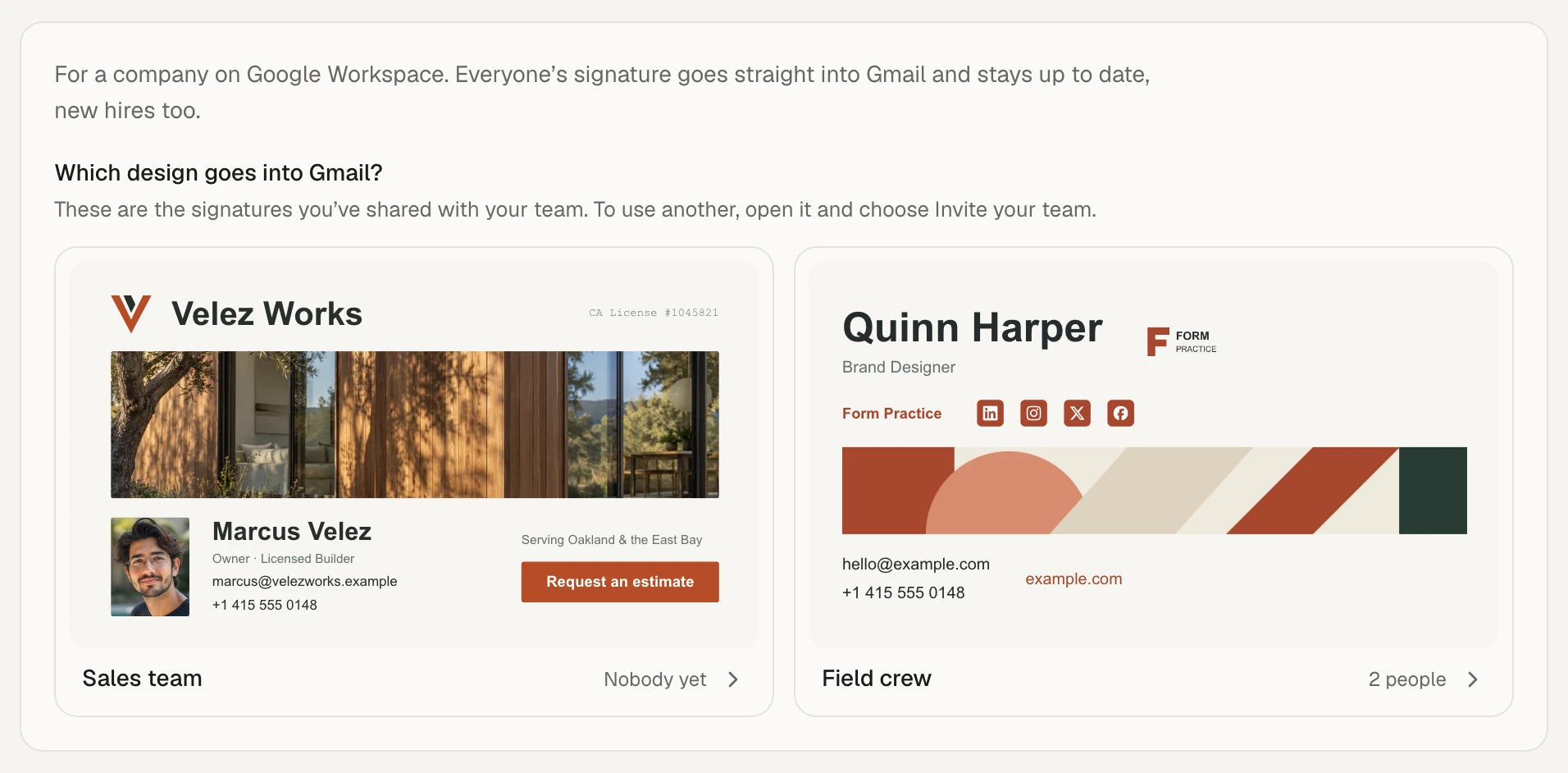
Just started your trial? Email apps shows your saved signatures first: choose Use this one on the one everyone gets. No signature yet? Choose Make the signature, finish it in the Editor, then come back to Email apps.
- 3
Step 3: Allow esigna in the Google Admin console
Super adminIn esigna this box is called Allow esigna in your Google Admin console, and a super admin does it in Google. It tells Google that esigna may read your directory and set Gmail signatures, and nothing more.
- 1Sign in to admin.google.com as a super admin. The Open the Admin console button on esigna’s page goes straight to the right place.
- 2Go to Security, then Access and data control, then API controls, and choose Manage Domain Wide Delegation.
- 3Choose Add new.
- 4Paste esigna’s Client ID into Client ID.
- 5Paste the five scopes into OAuth scopes, as one line with commas.
- 6Choose Authorize. Google can take a few minutes to apply it.
esigna’s Client ID
106054825476614320144The five scopes, as one line
https://www.googleapis.com/auth/admin.directory.user.readonly,https://www.googleapis.com/auth/gmail.settings.basic,https://www.googleapis.com/auth/gmail.settings.sharing,https://www.googleapis.com/auth/admin.directory.group.readonly,https://www.googleapis.com/auth/admin.directory.orgunit.readonlyFive scopes, one line. Paste them together into OAuth scopes. They let esigna read your directory, groups and units, and set Gmail signatures. They can’t read or send email.
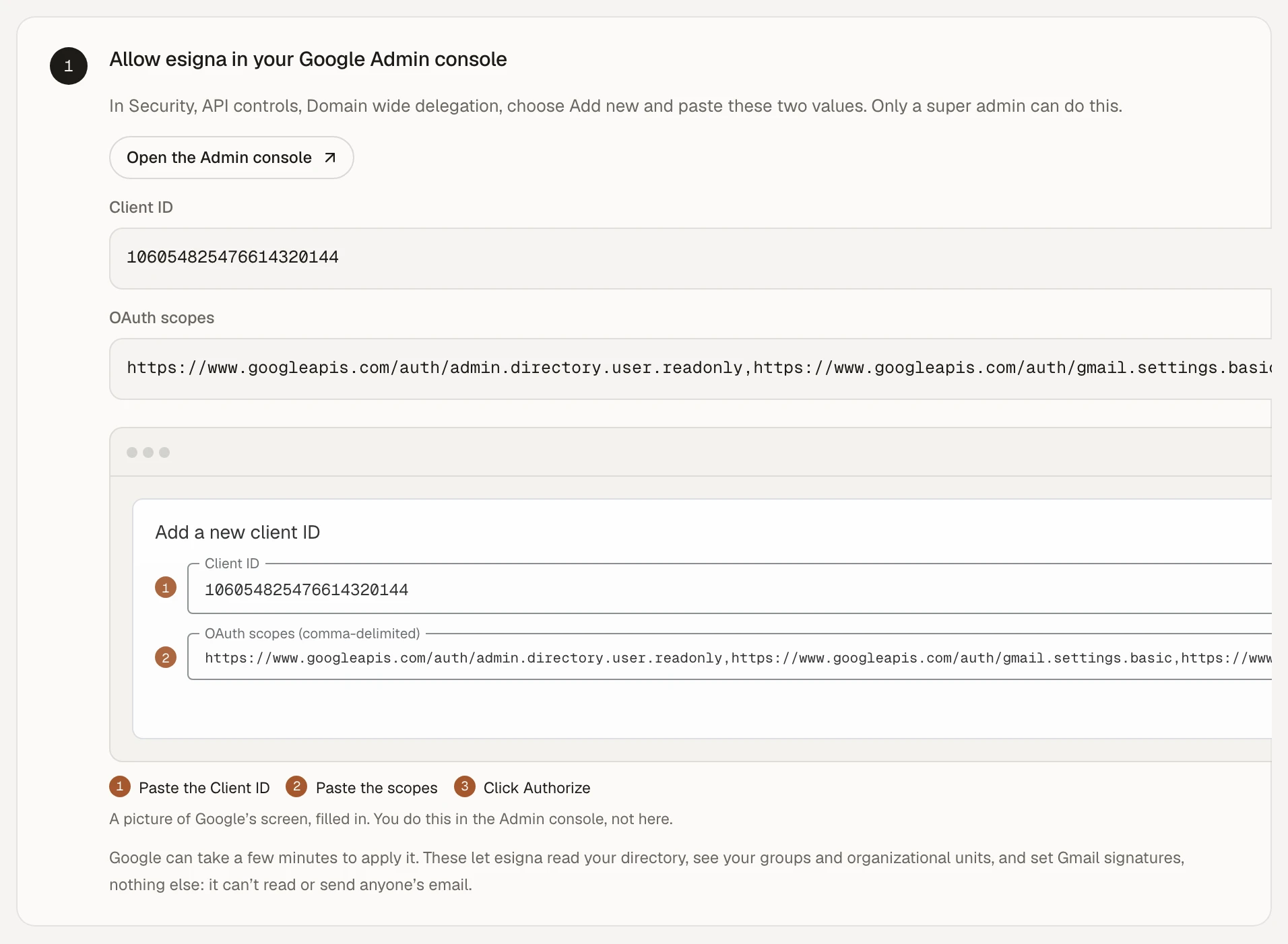
esigna shows the values with Copy buttons, and a picture of Google’s screen filled in. Not the admin? Send a setup link
Choose Copy a setup link and send it to your IT person. They allow esigna and sign in from that link, without an esigna account. It works for two weeks.

- 4
Step 4: Sign in with Google as that admin
Super adminIn esigna this box, right under the last one, is called Sign in as that admin. esigna checks two things: that the account is a super admin of the Google Workspace, and that the Admin console step is done. Signing in only shares the admin’s name and address.

- Google says esigna isn’t allowed yet
- The Admin console step isn’t done or hasn’t reached Google. Check the Client ID and scopes, wait a few minutes and sign in again.
- That account isn’t a super admin
- Sign in with a super admin account, or send them a setup link.
- That’s a personal Google account
- Use your company account, like you@yourcompany.com.
- Sign in didn’t finish, or took too long
- Nothing was connected. Sign in again from the same page.
- 5
Step 5: Choose who gets a signature
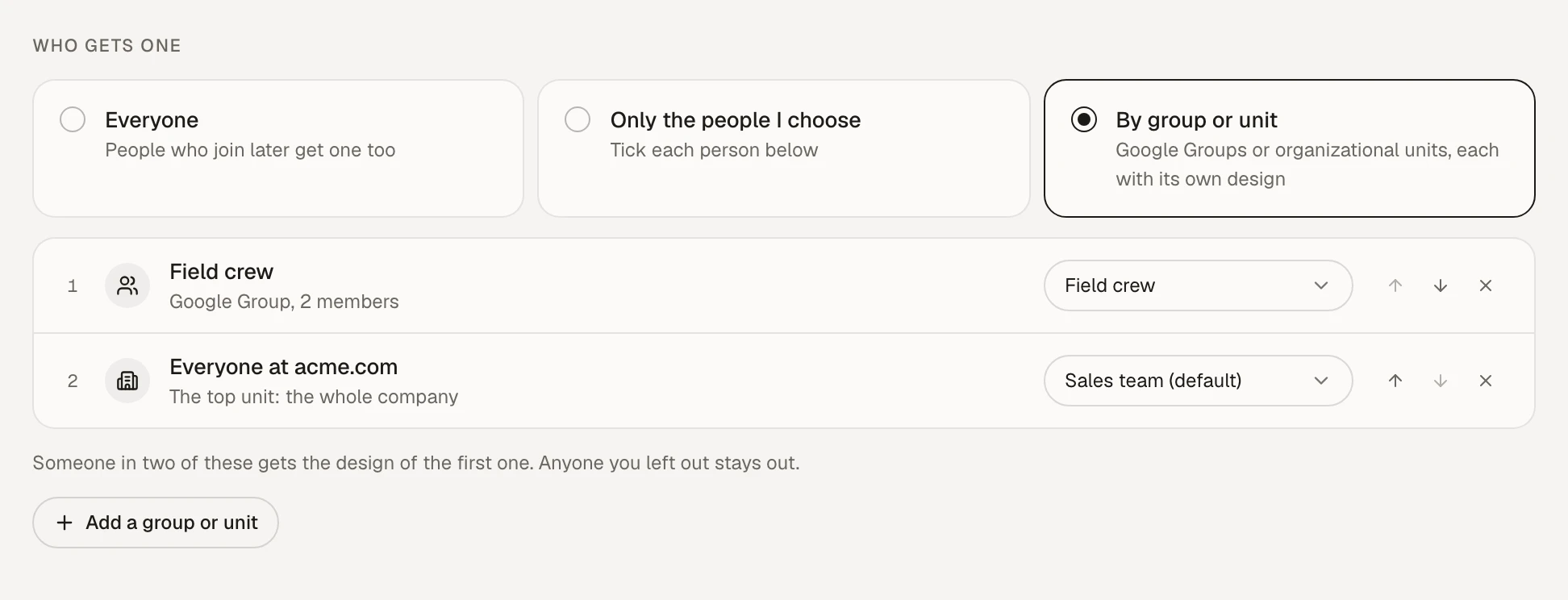
Once connected, Email apps shows Who gets one. Pick one of three ways. You can change it whenever you like.
- Everyone: each person in your directory gets one, and so do people who join later.
- Only the people I choose: tick each person in the list below it.
- By group or unit: add Google Groups or organizational units and give each its own design. Someone in two of them gets the design of the first one in the list.
- 6
Step 6: Check that it worked
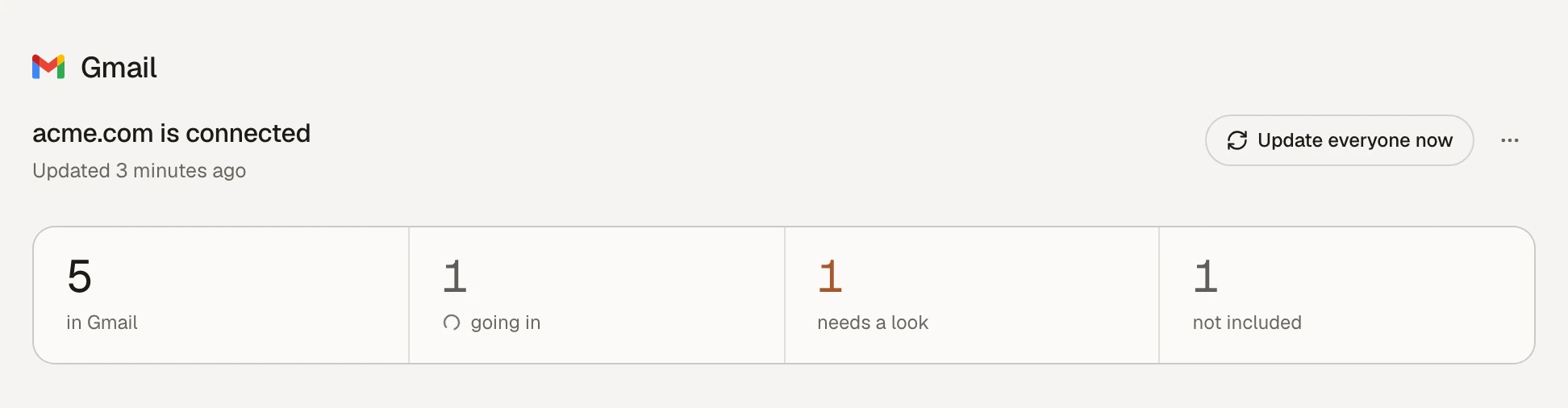
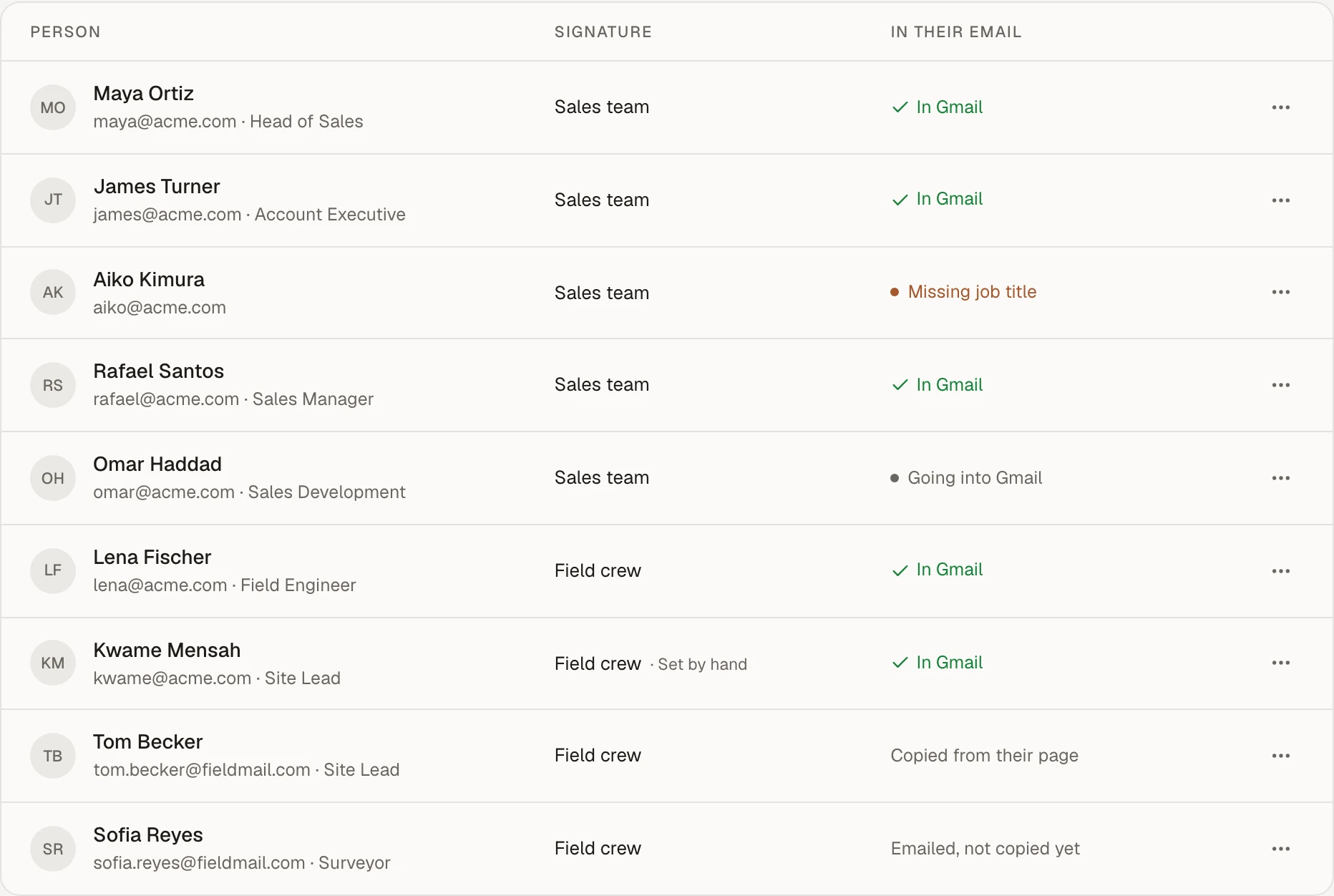
Within a couple of minutes the counts at the top fill in. In Gmail means the signature is there. Going in means esigna is writing it now.
- 1Open Gmail on the web as one of your people, or ask one of them.
- 2Choose Compose.
- 3The signature is at the bottom of the new email.
After setup
On phones
The Gmail app on iPhone and Android uses the same signature, unless the person typed a Mobile signature in the app, which wins.
- 1Open the Gmail app and go to Settings.
- 2Tap the company account.
- 3Open Mobile signature (Signature settings on iPhone) and leave it empty, or turn it off.
Keeping everyone up to date
You don’t need to do anything for this. Here is what esigna does on its own, and what you can do.
- Change the design in the Editor and everyone’s Gmail has it in a few minutes. esigna waits two minutes after your last edit, then writes.
- Once a day esigna reads your directory again: people who join get theirs, people who leave come off, and changed names and titles follow.
- Update everyone now writes every signature again straight away.
- To change one person’s details, open them on the People page. Their own edits are kept.
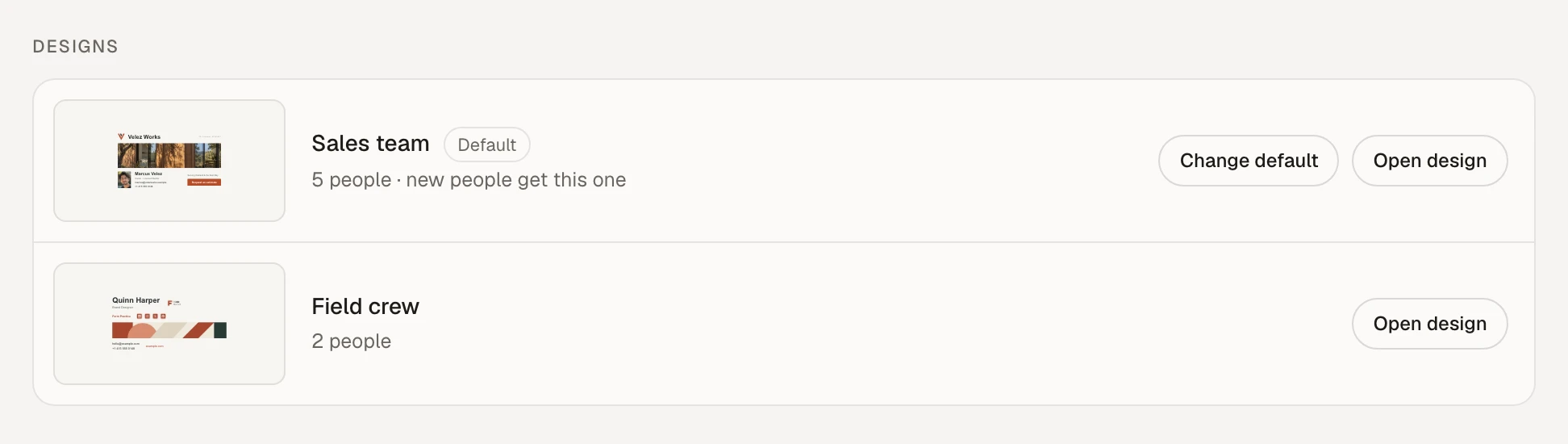
- Change default picks the design new people get, and moves everyone on the old default to it. Open design takes you to the Editor.
When a person needs a look
The People page says what is wrong beside the person. These are the messages you may see.
- No room left on your plan
- More people than your size holds. Change size on Email apps, or leave some people out.
- No name in the directory, or Missing job title
- Add it in the Google Admin console, or type it for that person on the People page.
- Too long for Gmail
- Gmail takes up to 10,000 characters. A shorter design or fewer links fixes it.
- No Gmail mailbox
- That account is suspended or has no Gmail turned on. Leave them out, or turn Gmail on for them in Google.
- Seasons or your own font aren’t in Gmail yet
- esigna can’t write these to Gmail yet, so that person’s signature waits. Turn them off on the design and it goes in.
- esigna isn’t allowed for this person
- Google refused esigna for that one account. Check in the Admin console that the account is active and has Gmail, then press Update everyone now. If it stays, write to us.
- Couldn’t write it, trying again soon
- Google didn’t answer this time. esigna tries again by itself.
Trial, billing and cancelling
Everything about paying lives in the panel at the top of Email apps.
- Your 14 days are free and no card is taken. Pay to keep it going any time during or after the trial.
- Pay monthly, or yearly and get 2 months free (a year costs 10 months).
- Change size moves you up when your team grows. You pay only the difference for the rest of the cycle.
- Billing and cancel opens your invoices, your card and the Cancel button. Updates go on until the end of what you paid for.
- When a trial or a plan ends, or a payment fails, every signature stays in Gmail as it is. Only the updates stop. To start them again, press Pay to keep it going after a trial, Update your card after a failed payment, or Start again after a plan ended.

Disconnect or remove esigna
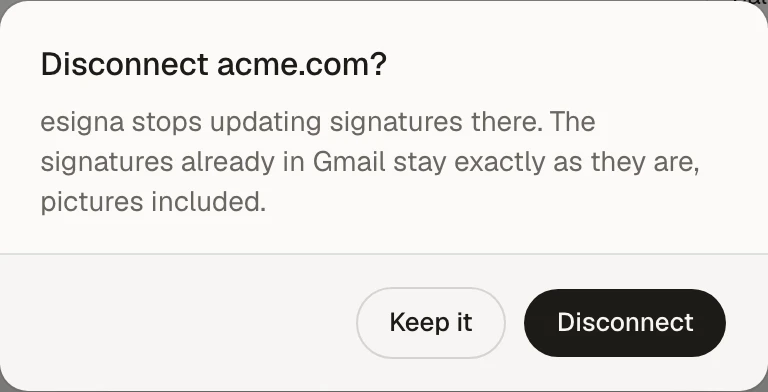
On Email apps, open the menu beside Update everyone now and choose Disconnect. esigna stops updating, and the signatures already in Gmail stay exactly as they are.
To remove esigna’s access completely, a super admin deletes esigna’s client ID under Domain wide delegation in the Admin console.
Stuck on a step?
Write to us with what you see, a screenshot helps. A person replies, usually the same day. support@esigna.app
FAQ
Questions after setup
How long until everyone has their signature?
A couple of minutes after you connect, for most people. Google can take a few minutes more to apply the Admin console step the first time.
Someone changed their signature in Gmail. What happens?
esigna puts the company’s signature back at its next daily check, or straight away when you press Update everyone now. To change their details for good, edit them on the People page.
Does it set signatures on aliases?
Yes, on the other addresses a person sends from at your domain, as long as the scope for other addresses was pasted in the Admin console.
We connected before groups and units existed. What do we do?
Ask your super admin to edit esigna’s client under Domain wide delegation and paste all five scopes over the three that are there. Nothing else changes.
Can I connect more than one Google Workspace?
Yes. Each design can go to its own Google Workspace, and your size counts the people across all of them.